


Connecting and signing in
Geslar Vezar guide
Connecting
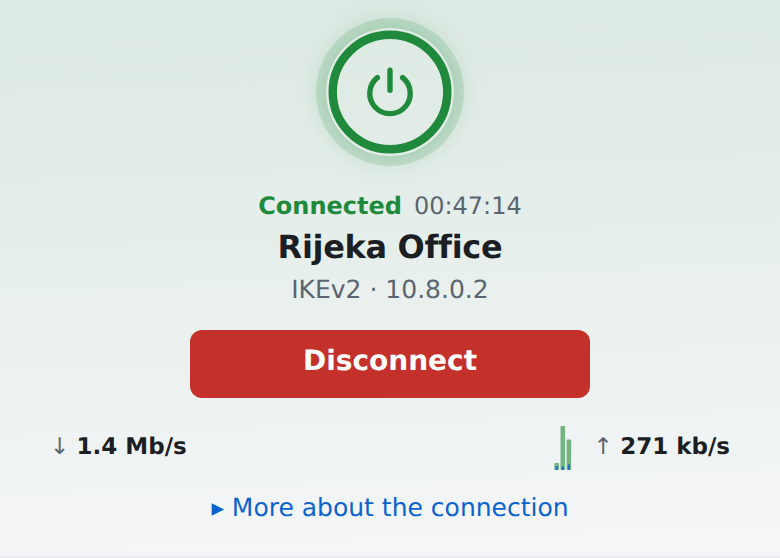
Choose a profile in the list and press “Connect”. The top shows the connection's state: “Not connected”, “Connecting”, then “Connected” with how long it has been up. “Disconnect” ends the connection, and “Cancel” stops a connection attempt that takes too long.
While connected, the traffic of the last 5 minutes (download and upload) shows too. The address in the VPN, DNS and the connection's other details are on the right in a wide window, and under “More about the connection” in a narrow one.
Signing in
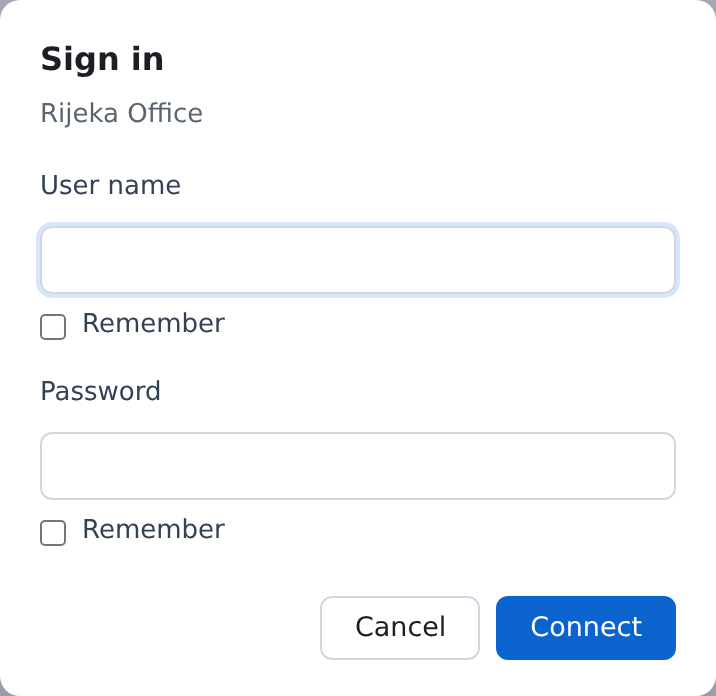
When the profile has no saved user name or password, the app asks for them when connecting. Each field has “Remember”: tick it if you do not want to type it every time.
When the server asks for more
Some servers ask for a second step besides the password. The app then opens a window with the server's question and the time left to answer:
- “Enter the code” — a one-time code from an authenticator app, a text message or a token.
- “Approve the sign-in on your phone…” — approve the sign-in in the app on your phone (e.g. FortiToken with a FortiGate); the connection continues by itself.
- “Sign in on the company page” — sign in in the window that opened (the company's single sign-on); when you finish, the window closes and the connection continues.
- “Message from the server” — read the message and press “Accept”; without it the connection ends.
- “The account's password has expired” — type the new password twice (and the current one if the password was saved); the app sends it to the server, the connection continues and the saved password is replaced. It is your account's password at the company (usually the same as for signing in to office computers). It works when the company's server allows the change (e.g. a Windows server, Cisco).
While connected
Next to “Connected” you see the protocol and the address you got in the VPN network. If the connection drops, the app reconnects by itself (“Reconnecting · attempt …”). When the protection that blocks traffic while the connection is down is on, the internet does not work until the connection is back — “Disconnect” brings it back.
If the connection cannot be made, the app shows the reason and what to do; more in Common messages.
Did not find an answer? Write to us